> ## Documentation Index
> Fetch the complete documentation index at: https://docs.powerux.app/llms.txt
> Use this file to discover all available pages before exploring further.
# Your First Flow
> Add custom business logic to your model-driven app with no-code by creating and publishing your first flow.
## Requirements
To begin creating your flow, you must install and set up the Power UX solution in your environment.
**Attention**: If you have not yet installed PowerUX-MDA, see the [Installation](/102245a9fc02434b9e8000ffae2f0297?pvs=25) how-to.
To create your first UX flow, follow these steps:
1. Go to **Flows** from the navigation menu and click **New Flow.**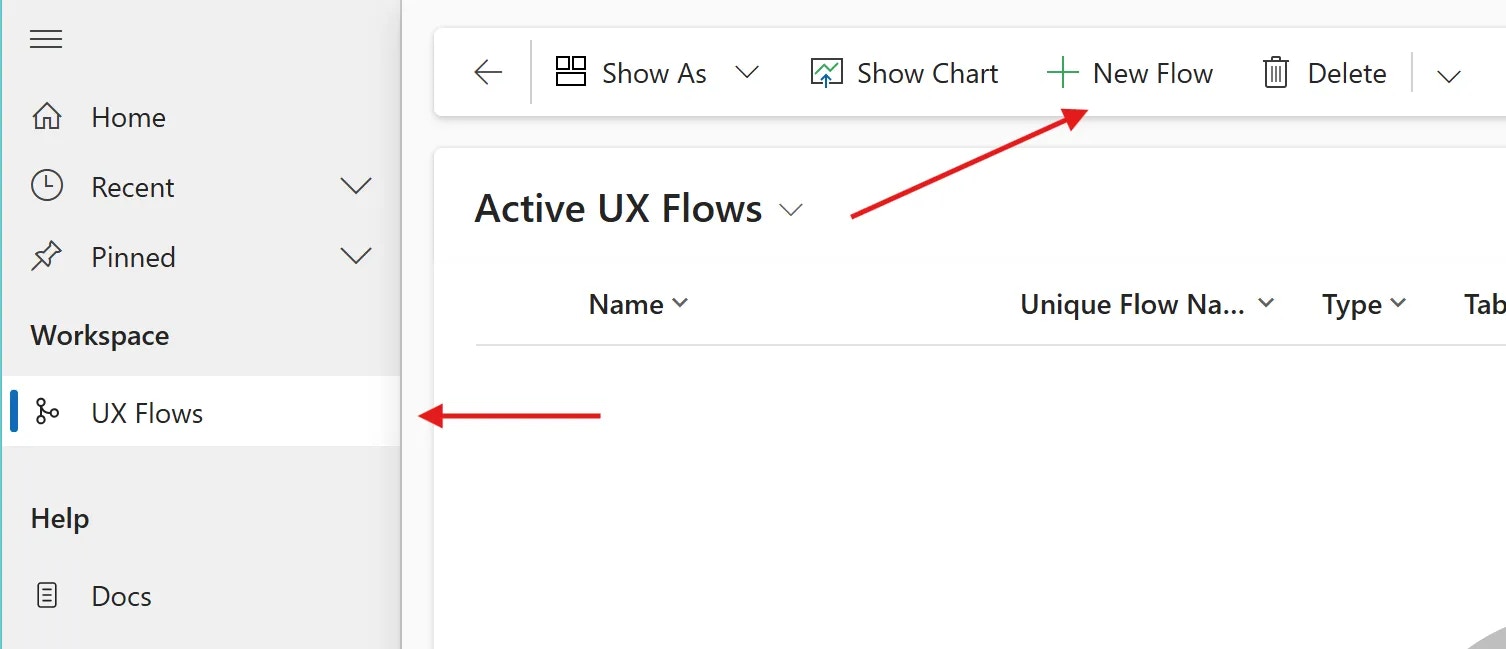 2. Select the flow type from the popup window
 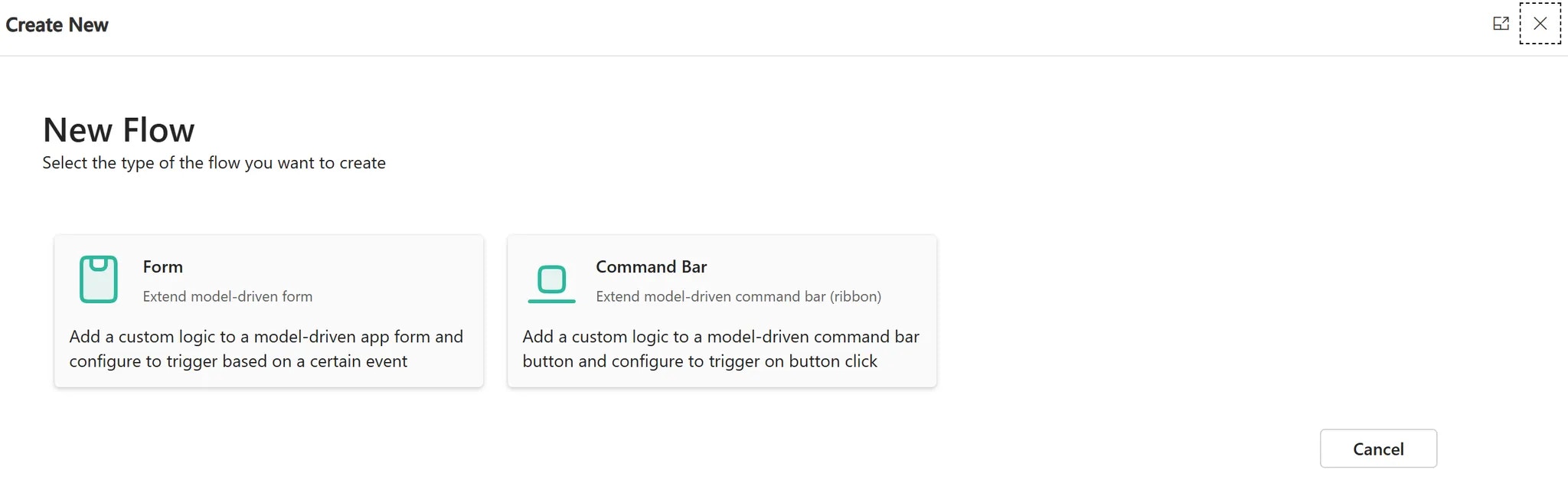 3. Choose a **Name**, **Table** and the **Form** for the new flow, then click **Create.**
 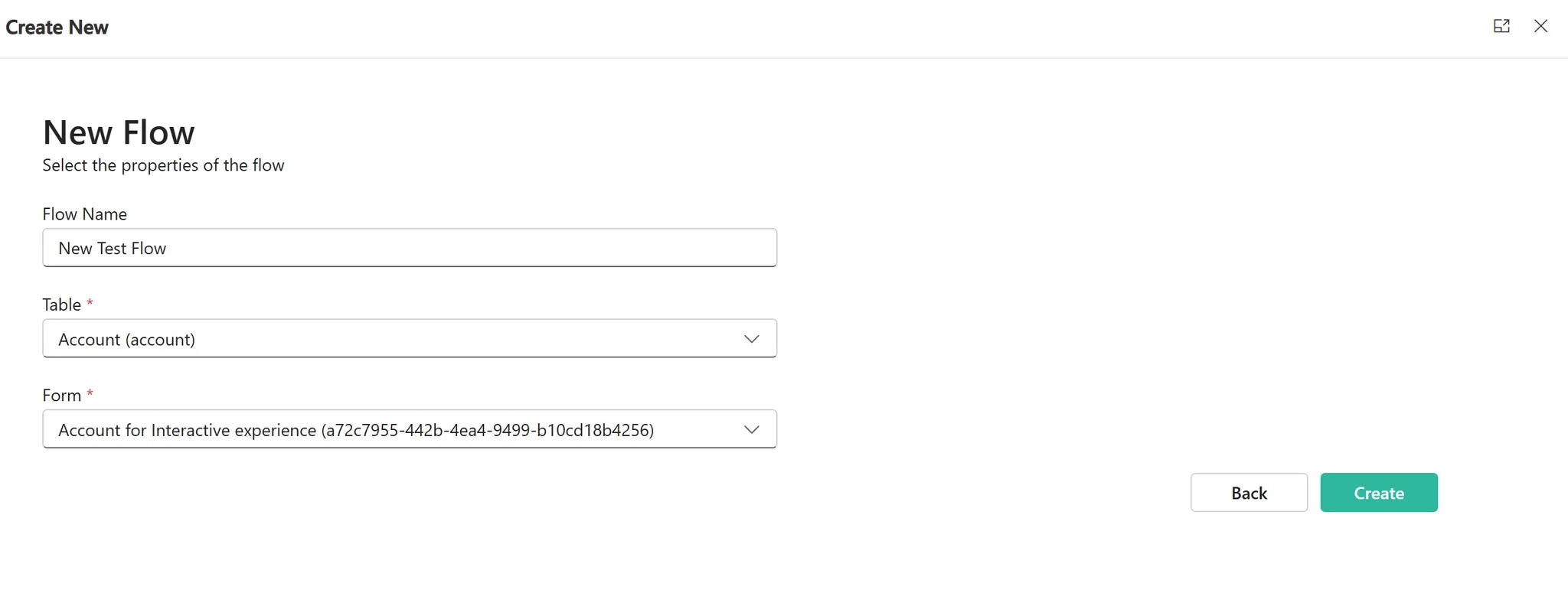 4. Edit the **Unique Name** of your flow, or keep it as suggested, click **Save** to complete the process
 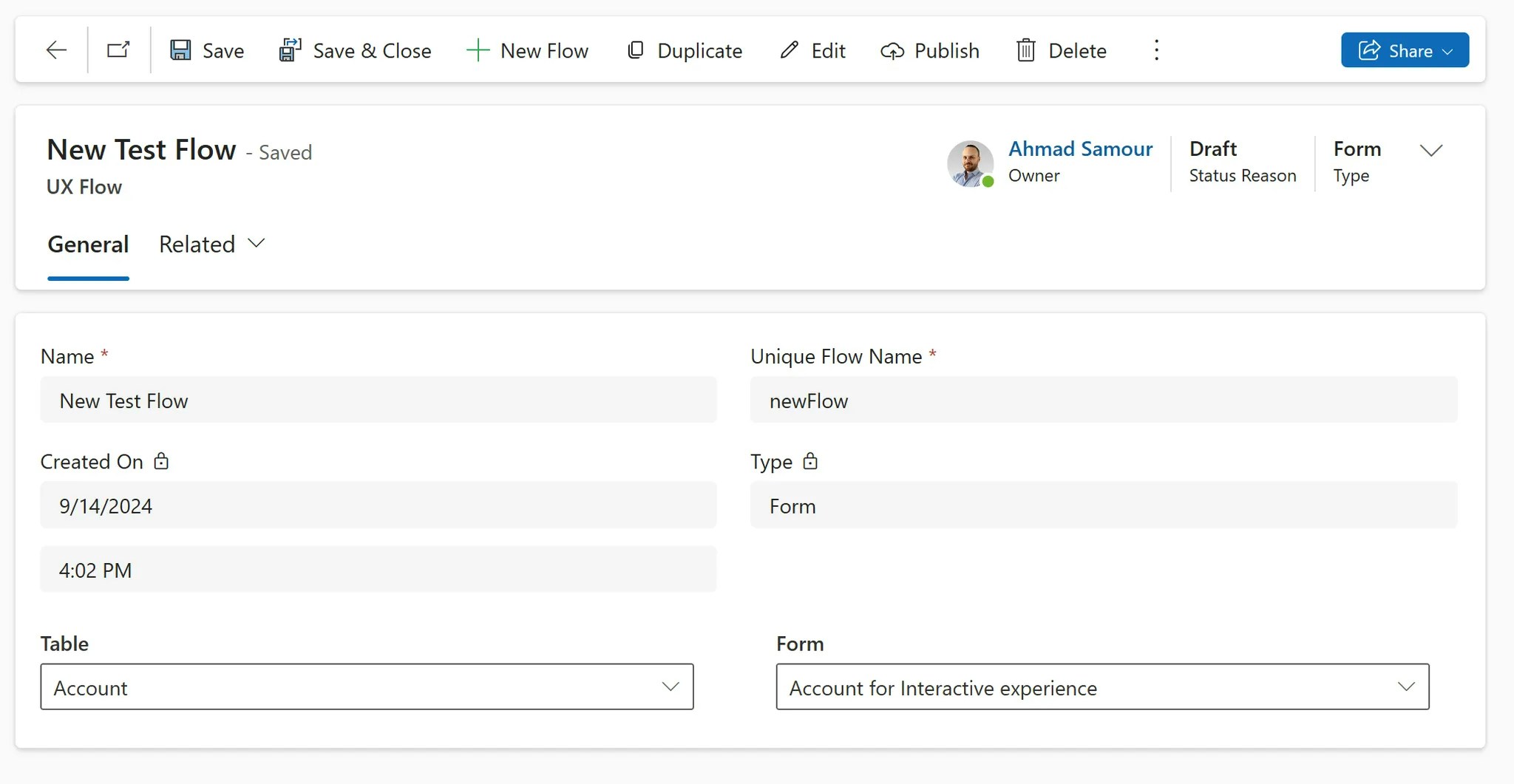 **Attention**: When creating a new flow, remember that the Unique Name you choose must be different for each flow. If you use an already existing name, you won’t be able to create your flow.
**Tip**: Use a short Unique Name for easier identification.
A trigger is an event or action that sets off your flow. It could be an email being changed or a form being saved for example.
You can select multiple triggers. See the [Triggers](/403f30dfde2c466181fc462720b7d170?pvs=25) page for details.
Now that your flow has been created, you can start editing it by following the below steps:
1. Click Edit to open the UI Flow Editor.
**Attention**: When creating a new flow, remember that the Unique Name you choose must be different for each flow. If you use an already existing name, you won’t be able to create your flow.
**Tip**: Use a short Unique Name for easier identification.
A trigger is an event or action that sets off your flow. It could be an email being changed or a form being saved for example.
You can select multiple triggers. See the [Triggers](/403f30dfde2c466181fc462720b7d170?pvs=25) page for details.
Now that your flow has been created, you can start editing it by following the below steps:
1. Click Edit to open the UI Flow Editor. 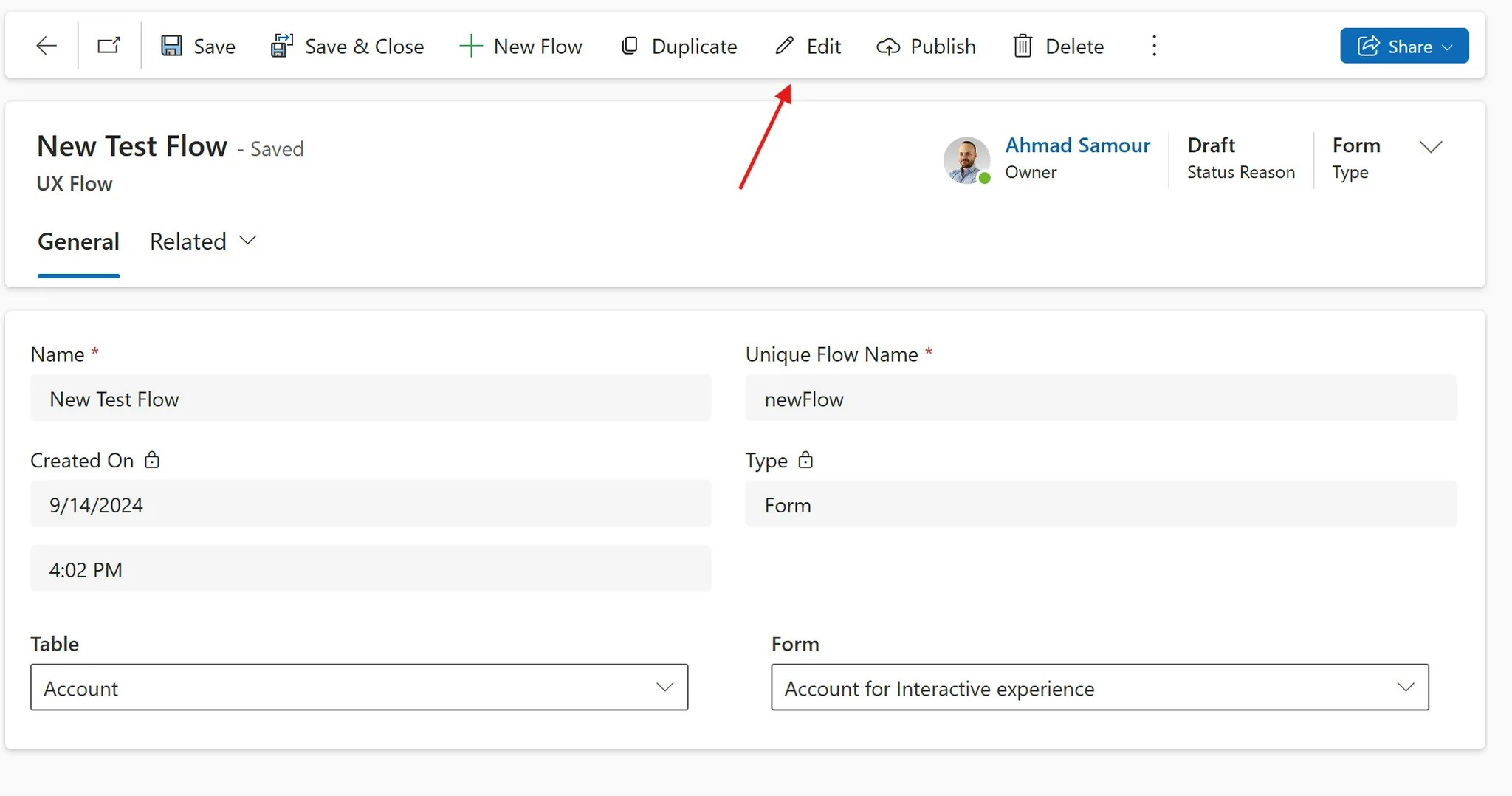 2. If your flow is a form flow, start by selecting a Trigger.
3. Click the + button to select an action.
4. After creating your flow, click the Save button on the toolbar.
If the flow type is command bar, the trigger will be like the below
2. If your flow is a form flow, start by selecting a Trigger.
3. Click the + button to select an action.
4. After creating your flow, click the Save button on the toolbar.
If the flow type is command bar, the trigger will be like the below
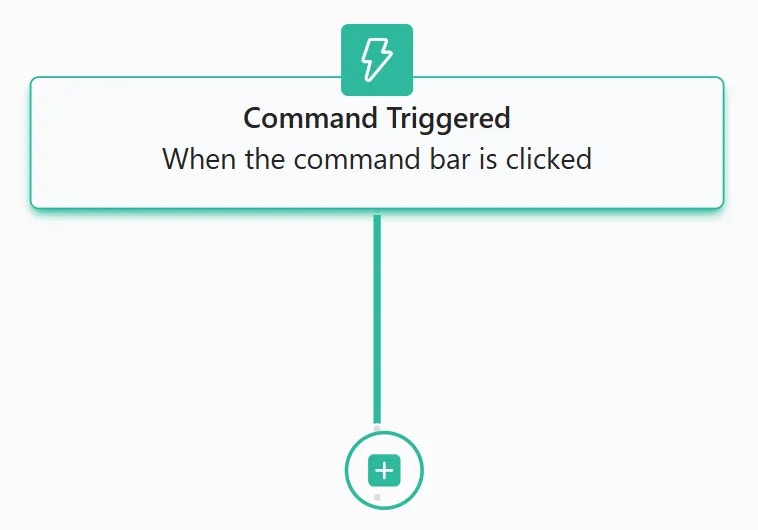 Your flow is currently a draft. To apply it, you must publish it.
1. Click **Publish**.
Your flow is currently a draft. To apply it, you must publish it.
1. Click **Publish**. 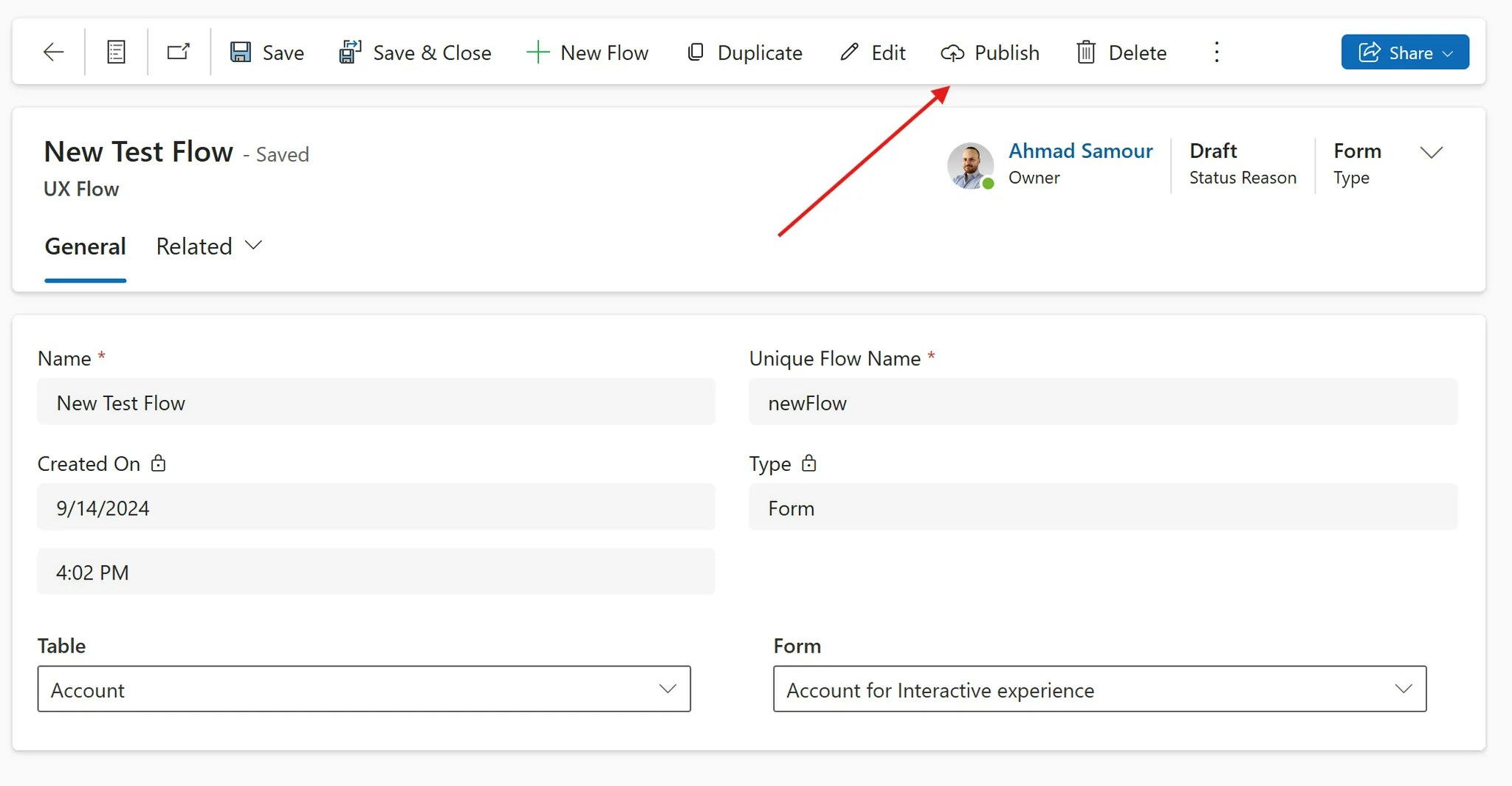 2. After the loading is complete, this window will appear. Click **OK**.
 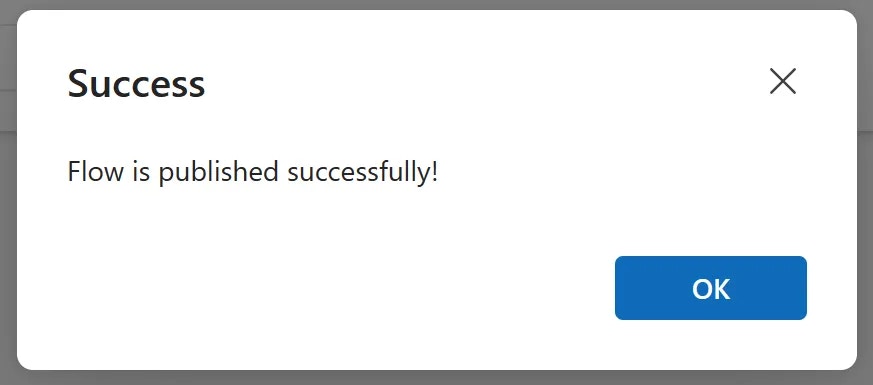 **Result**: Your flow is now published and will be applied on the form selected.
If you want to make changes to your published flow, the process is simple:
1. Click Edit. Make your modifications and save the flow,
2. When the window closes, click Update to apply the changes made.
**Result**: Your flow is now published and will be applied on the form selected.
If you want to make changes to your published flow, the process is simple:
1. Click Edit. Make your modifications and save the flow,
2. When the window closes, click Update to apply the changes made. 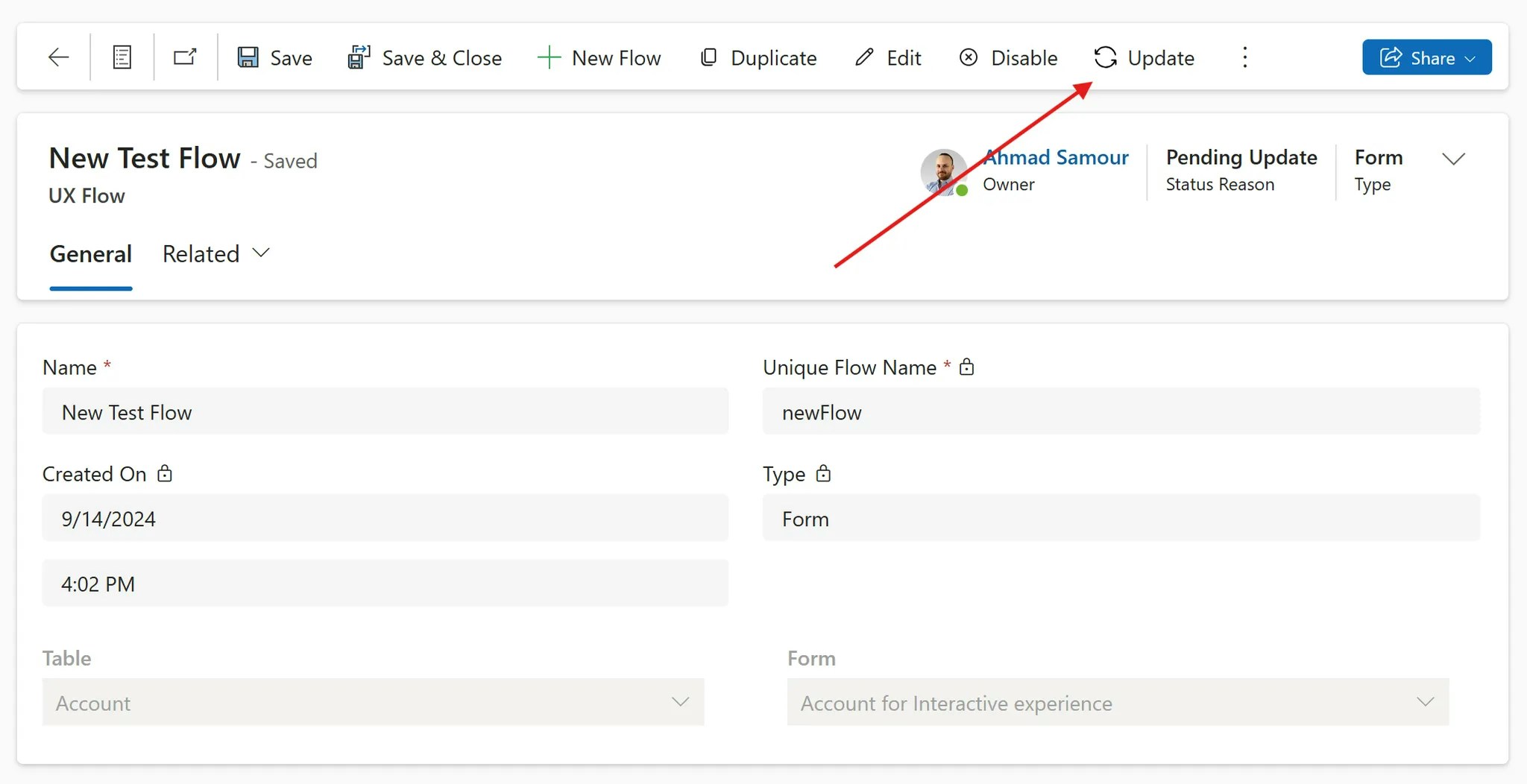 **Result**: your flow is now updated.