> ## Documentation Index
> Fetch the complete documentation index at: https://docs.powerux.app/llms.txt
> Use this file to discover all available pages before exploring further.
# AI-Generated Flows
> Create UX flows using natural language with generative AI
## Overview
PowerUX's AI-Generated Flows feature allows you to create sophisticated UX flows using natural language descriptions. Simply describe what you want your flow to do in plain English, and our generative AI will create the complete flow with all the necessary action steps, logic, and configurations.
**Powered by Generative AI** This feature uses advanced AI to understand your requirements and generate production-ready flows. No coding or technical knowledge required!
## Why Use AI-Generated Flows?
Create complex flows in seconds instead of minutes or hours
Describe what you want in plain language - no technical expertise needed
AI understands context and generates flows with proper logic and structure
See how AI implements your requirements and learn PowerUX best practices
## Getting Started with AI Flows
### Step 1: Start Creating a Flow
From the UX Flows list, click **+ New Flow** to open the flow creation dialog.
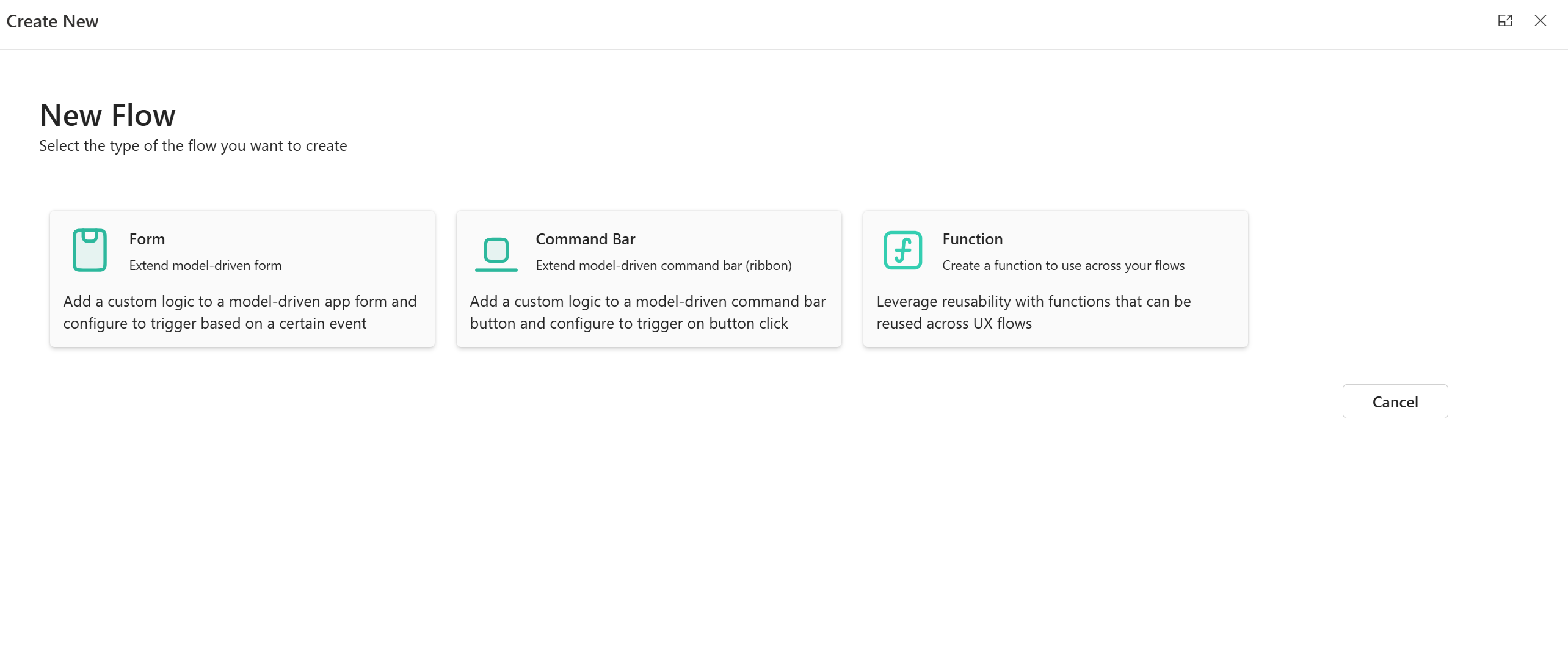
### Step 2: Select Flow Type
Choose the type of flow you want to create:
* **Form** - For model-driven app forms
* **Command Bar** - For ribbon buttons
* **Function** - For reusable functions
 ### Step 3: Choose "Create with AI"
In the flow properties screen, you'll see several options. Click on **Create with AI** - the first option with the sparkles icon.
### Step 3: Choose "Create with AI"
In the flow properties screen, you'll see several options. Click on **Create with AI** - the first option with the sparkles icon.
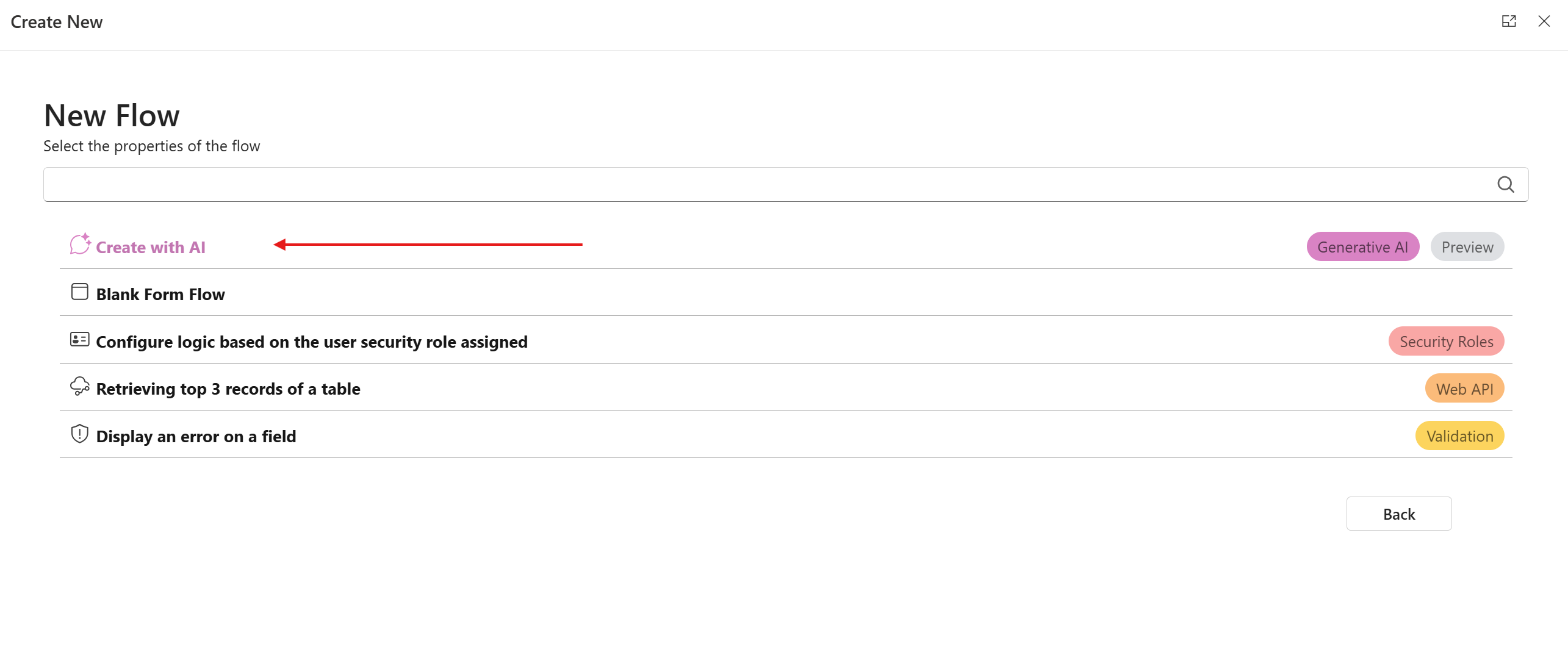 The **Generative AI** button on the right indicates you're in AI creation mode!
### Step 4: Describe Your Flow
A text area will appear asking you to "Describe Your Flow in Plain Text". This is where the magic happens!
The **Generative AI** button on the right indicates you're in AI creation mode!
### Step 4: Describe Your Flow
A text area will appear asking you to "Describe Your Flow in Plain Text". This is where the magic happens!
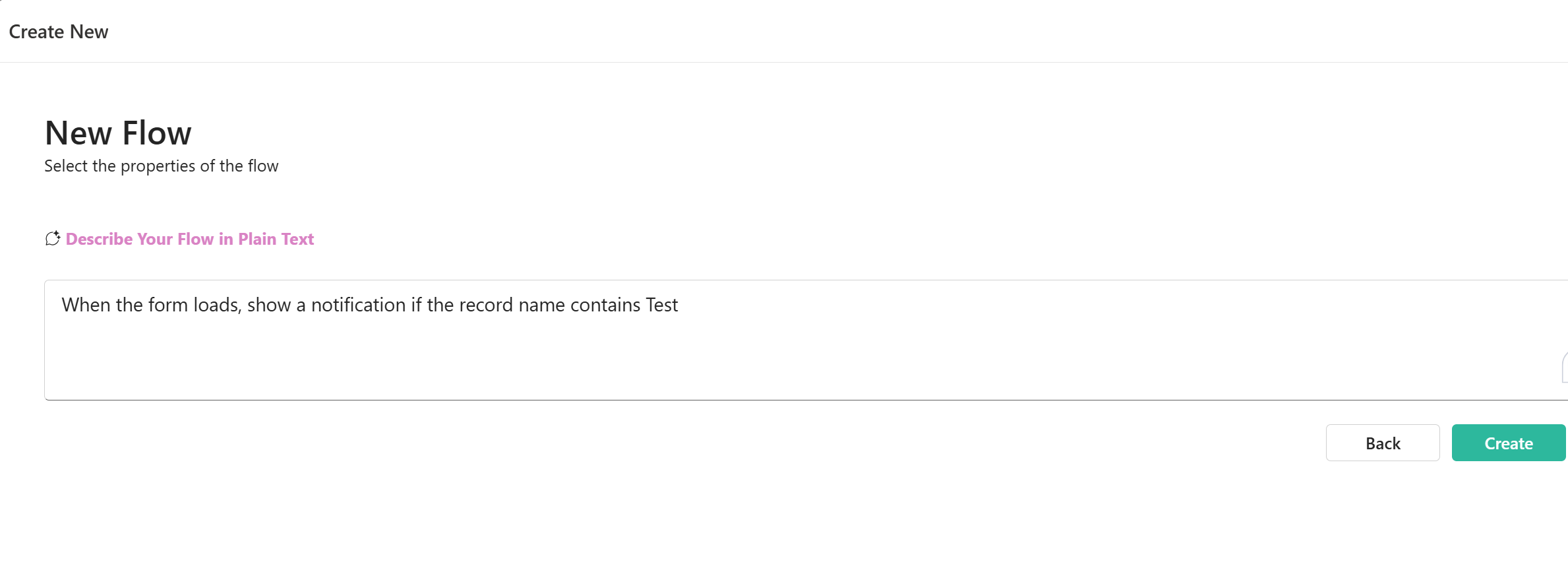 **Write a clear description** of what you want your flow to do. For example:
```
When the form loads, show a notification if the record name contains Test
```
Be specific about:
* **When** it should happen (trigger)
* **What** it should do (actions)
* **Conditions** if any (logic)
### Step 5: Configure Flow Properties
After describing your flow, set the standard flow properties:
A descriptive name for your flow
Brief description of what the flow does (optional but recommended)
Select the table this flow operates on
Select the form for this flow (for Form flows)
### Step 6: Create Your Flow
Click the **Create** button. PowerUX AI will:
1. Analyze your natural language description
2. Determine the required action steps
3. Configure the proper logic and conditions
4. Generate a complete, ready-to-use flow
Your AI-generated flow opens in the flow builder, ready to review, modify, or publish!
## Writing Effective AI Prompts
The quality of your AI-generated flow depends on how clearly you describe your requirements. Follow these best practices:
### Be Specific About Triggers
* "When the form loads"
* "When the user clicks the Save button"
* "When the Status field changes"
* "On form load, after data is loaded"
* "Sometimes do this"
* "When needed"
* "Usually when..."
### Describe Clear Actions
* "Show a notification with the message 'Record saved successfully'"
* "Hide the Credit Limit field"
* "Set the Status field to 'Active'"
* "Do something with the field"
* "Update stuff"
* "Handle the record"
### Include Conditions Clearly
* "If the Account Type equals 'Enterprise'"
* "When the record name contains 'Test'"
* "If the Annual Revenue is greater than 1000000"
* "When the Status is not 'Active' and Priority is 'High'"
* "If it's the right type"
* "When appropriate"
* "If needed"
## Example AI Prompts
### Simple Notification
**Prompt:**
```
When the form loads, show a notification if the record name contains Test
```
**What AI Creates:**
* Form OnLoad trigger
* Condition checking if Name contains "Test"
* Form notification action with an appropriate message
***
### Field Visibility Control
**Prompt:**
```
When the Account Type field changes, hide the Credit Limit field if the
type is not Enterprise, otherwise show it
```
**What AI Creates:**
* Field OnChange trigger for Account Type
* Branching condition based on field value
* Show/Hide control actions for Credit Limit field
***
### Data Validation
**Prompt:**
```
When the user clicks Save, check if the email field has a valid email format.
If not, show an error on the field and prevent saving
```
**What AI Creates:**
* Form OnSave trigger
* Email validation logic
* Error display on field
* Cancel save action if invalid
***
### Automated Record Creation
**Prompt:**
```
When the form saves and the Status is changed to Won, automatically create
a new Task record assigned to the owner with subject "Follow up on opportunity"
```
**What AI Creates:**
* Form OnSave trigger
* Condition checking Status change
* Create Record action with proper field mappings
* Success notification
***
### Complex Business Logic
**Prompt:**
```
On form load, if the user is a System Administrator, show all fields.
If the user is a Sales Rep, hide the Cost Price and Margin fields.
For all other users, make the form read-only and show a warning notification
```
**What AI Creates:**
* Form OnLoad trigger
* Multiple branching conditions based on user roles
* Field visibility controls for each scenario
* Form mode changes
* Conditional notifications
## Advanced AI Prompt Techniques
### Use Context from Multiple Fields
**Prompt:**
```
When Annual Revenue is greater than $5M and Account Type is Enterprise
and Credit Hold is false, automatically set the Credit Limit to the
Annual Revenue multiplied by 0.2
```
The AI understands multi-field relationships and creates appropriate logic.
### Specify Complex Workflows
**Prompt:**
```
When the form saves:
1. If Status changed to Complete, set the send email flag to yes
2. Show a success notification
```
The AI creates a sequential flow with all steps in the correct order.
## Reviewing and Refining AI-Generated Flows
After AI generates your flow:
Examine the generated action steps in the flow builder
Use the Preview feature to test different scenarios
Modify any action steps to better match your specific requirements
Enhance with additional error handling or user feedback
When satisfied, publish your flow to production
AI-generated flows are a great starting point. You can always modify them to add more sophisticated logic or handle edge cases.
## Tips for Best Results
Begin with a basic description and let AI create the flow. Then, if needed, create a new version with more details.
Reference fields by their display names as they appear in the form (e.g., "Account Name" not "accountname").
If you have multiple actions, describe them in the order they should occur. Use numbered lists when helpful.
Describe the user experience you want: "show a notification", "display an error", "prompt for confirmation".
## Common Use Cases
### Conditional Field Visibility
```
When the form loads, hide the Discount field if the Account Type
is not Premium or VIP
```
### Dynamic Field Requirements
```
When the Opportunity Stage changes to Proposal, make the
Budget Amount and Close Date fields required
```
### Calculated Fields
```
When Quantity or Unit Price changes, calculate and set the
Total Amount to Quantity multiplied by Unit Price
```
### User Notifications
```
When the form loads, if this is a high-priority case that hasn't
been updated in 48 hours, show an urgent warning notification
```
### Record Status Management
```
When Save is clicked, if all required fields are filled and the
Status is Draft, automatically change Status to Ready for Review
```
## Troubleshooting
**Solution**: Review the generated flow in the builder. The AI might have interpreted your description differently. Modify the action steps or try rephrasing your description.
**Solution**: Ensure you're using the exact display names of fields as they appear in your form. Check spelling and capitalization.
**Solution**: Adjust the detail level in your description. More detail = more complex flows. Less detail = simpler flows.
**Solution**: Either describe all scenarios in one prompt, or create separate flows for each scenario and combine them manually.
## Comparing AI vs Manual Creation
**Best For:**
* Quick prototyping
* Common scenarios
* Learning PowerUX
* Time-sensitive projects
**Time:** Seconds to minutes
**Best For:**
* Very specific requirements
* Complex custom logic
* Edge case handling
* Fine-tuned optimization
**Time:** Minutes to hours
**Pro Tip**: Use AI to create the initial flow structure, then manually refine it for your exact needs. This gives you the best of both worlds!
## AI Generation Limits
**Current Limitations**
While our AI is powerful, be aware of these current limitations:
* Complex multi-branch logic may need manual refinement
* Very specific custom requirements might need manual implementation
* Integration with external systems may require additional configuration
* Some advanced scenarios are better built manually
These limitations are continually improving as our AI capabilities expand!
## Privacy and Data
**Your Data is Safe**
When you use AI-generated flows:
* Your natural language descriptions are processed securely
* No sensitive data from your environment is stored
* AI learns from patterns, not your specific data
* All standard PowerUX privacy policies apply
## Best Practices Summary
**Do This:**
* ✅ Write clear, specific descriptions
* ✅ Use proper field names
* ✅ Mention triggers explicitly
* ✅ Describe desired user experience
* ✅ Review and refine as needed
**Avoid This:**
* ❌ Vague or ambiguous descriptions
* ❌ Assuming AI knows your custom fields
* ❌ Overly complex single prompts
* ❌ Expecting perfection without review
* ❌ Using technical jargon unnecessarily
## Related Resources
Create reusable logic that can be used across flows
Learn about all available action steps
Understand when flows execute
## FAQs
The AI is highly accurate for common scenarios and well-described requirements. For best results, provide clear, specific descriptions. You can always review and modify the generated flow.
Absolutely! AI-generated flows are fully editable. Use AI to create the structure, then refine manually to perfect your flow.
Try rephrasing your description with more detail or simpler language. Break complex requirements into smaller, clearer statements.
AI generation is included with your PowerUX subscription. Check your plan details for any usage limits.
Yes! The AI generation feature works with Forms, Command Bars, and Functions. Just select Function as the flow type.
## Get Started Now
Ready to create your first AI-generated flow?
Click New Flow → Choose Create with AI → Describe what you want → Create!
Experience the power of natural language flow creation and see how AI can accelerate your PowerUX development!
**Write a clear description** of what you want your flow to do. For example:
```
When the form loads, show a notification if the record name contains Test
```
Be specific about:
* **When** it should happen (trigger)
* **What** it should do (actions)
* **Conditions** if any (logic)
### Step 5: Configure Flow Properties
After describing your flow, set the standard flow properties:
A descriptive name for your flow
Brief description of what the flow does (optional but recommended)
Select the table this flow operates on
Select the form for this flow (for Form flows)
### Step 6: Create Your Flow
Click the **Create** button. PowerUX AI will:
1. Analyze your natural language description
2. Determine the required action steps
3. Configure the proper logic and conditions
4. Generate a complete, ready-to-use flow
Your AI-generated flow opens in the flow builder, ready to review, modify, or publish!
## Writing Effective AI Prompts
The quality of your AI-generated flow depends on how clearly you describe your requirements. Follow these best practices:
### Be Specific About Triggers
* "When the form loads"
* "When the user clicks the Save button"
* "When the Status field changes"
* "On form load, after data is loaded"
* "Sometimes do this"
* "When needed"
* "Usually when..."
### Describe Clear Actions
* "Show a notification with the message 'Record saved successfully'"
* "Hide the Credit Limit field"
* "Set the Status field to 'Active'"
* "Do something with the field"
* "Update stuff"
* "Handle the record"
### Include Conditions Clearly
* "If the Account Type equals 'Enterprise'"
* "When the record name contains 'Test'"
* "If the Annual Revenue is greater than 1000000"
* "When the Status is not 'Active' and Priority is 'High'"
* "If it's the right type"
* "When appropriate"
* "If needed"
## Example AI Prompts
### Simple Notification
**Prompt:**
```
When the form loads, show a notification if the record name contains Test
```
**What AI Creates:**
* Form OnLoad trigger
* Condition checking if Name contains "Test"
* Form notification action with an appropriate message
***
### Field Visibility Control
**Prompt:**
```
When the Account Type field changes, hide the Credit Limit field if the
type is not Enterprise, otherwise show it
```
**What AI Creates:**
* Field OnChange trigger for Account Type
* Branching condition based on field value
* Show/Hide control actions for Credit Limit field
***
### Data Validation
**Prompt:**
```
When the user clicks Save, check if the email field has a valid email format.
If not, show an error on the field and prevent saving
```
**What AI Creates:**
* Form OnSave trigger
* Email validation logic
* Error display on field
* Cancel save action if invalid
***
### Automated Record Creation
**Prompt:**
```
When the form saves and the Status is changed to Won, automatically create
a new Task record assigned to the owner with subject "Follow up on opportunity"
```
**What AI Creates:**
* Form OnSave trigger
* Condition checking Status change
* Create Record action with proper field mappings
* Success notification
***
### Complex Business Logic
**Prompt:**
```
On form load, if the user is a System Administrator, show all fields.
If the user is a Sales Rep, hide the Cost Price and Margin fields.
For all other users, make the form read-only and show a warning notification
```
**What AI Creates:**
* Form OnLoad trigger
* Multiple branching conditions based on user roles
* Field visibility controls for each scenario
* Form mode changes
* Conditional notifications
## Advanced AI Prompt Techniques
### Use Context from Multiple Fields
**Prompt:**
```
When Annual Revenue is greater than $5M and Account Type is Enterprise
and Credit Hold is false, automatically set the Credit Limit to the
Annual Revenue multiplied by 0.2
```
The AI understands multi-field relationships and creates appropriate logic.
### Specify Complex Workflows
**Prompt:**
```
When the form saves:
1. If Status changed to Complete, set the send email flag to yes
2. Show a success notification
```
The AI creates a sequential flow with all steps in the correct order.
## Reviewing and Refining AI-Generated Flows
After AI generates your flow:
Examine the generated action steps in the flow builder
Use the Preview feature to test different scenarios
Modify any action steps to better match your specific requirements
Enhance with additional error handling or user feedback
When satisfied, publish your flow to production
AI-generated flows are a great starting point. You can always modify them to add more sophisticated logic or handle edge cases.
## Tips for Best Results
Begin with a basic description and let AI create the flow. Then, if needed, create a new version with more details.
Reference fields by their display names as they appear in the form (e.g., "Account Name" not "accountname").
If you have multiple actions, describe them in the order they should occur. Use numbered lists when helpful.
Describe the user experience you want: "show a notification", "display an error", "prompt for confirmation".
## Common Use Cases
### Conditional Field Visibility
```
When the form loads, hide the Discount field if the Account Type
is not Premium or VIP
```
### Dynamic Field Requirements
```
When the Opportunity Stage changes to Proposal, make the
Budget Amount and Close Date fields required
```
### Calculated Fields
```
When Quantity or Unit Price changes, calculate and set the
Total Amount to Quantity multiplied by Unit Price
```
### User Notifications
```
When the form loads, if this is a high-priority case that hasn't
been updated in 48 hours, show an urgent warning notification
```
### Record Status Management
```
When Save is clicked, if all required fields are filled and the
Status is Draft, automatically change Status to Ready for Review
```
## Troubleshooting
**Solution**: Review the generated flow in the builder. The AI might have interpreted your description differently. Modify the action steps or try rephrasing your description.
**Solution**: Ensure you're using the exact display names of fields as they appear in your form. Check spelling and capitalization.
**Solution**: Adjust the detail level in your description. More detail = more complex flows. Less detail = simpler flows.
**Solution**: Either describe all scenarios in one prompt, or create separate flows for each scenario and combine them manually.
## Comparing AI vs Manual Creation
**Best For:**
* Quick prototyping
* Common scenarios
* Learning PowerUX
* Time-sensitive projects
**Time:** Seconds to minutes
**Best For:**
* Very specific requirements
* Complex custom logic
* Edge case handling
* Fine-tuned optimization
**Time:** Minutes to hours
**Pro Tip**: Use AI to create the initial flow structure, then manually refine it for your exact needs. This gives you the best of both worlds!
## AI Generation Limits
**Current Limitations**
While our AI is powerful, be aware of these current limitations:
* Complex multi-branch logic may need manual refinement
* Very specific custom requirements might need manual implementation
* Integration with external systems may require additional configuration
* Some advanced scenarios are better built manually
These limitations are continually improving as our AI capabilities expand!
## Privacy and Data
**Your Data is Safe**
When you use AI-generated flows:
* Your natural language descriptions are processed securely
* No sensitive data from your environment is stored
* AI learns from patterns, not your specific data
* All standard PowerUX privacy policies apply
## Best Practices Summary
**Do This:**
* ✅ Write clear, specific descriptions
* ✅ Use proper field names
* ✅ Mention triggers explicitly
* ✅ Describe desired user experience
* ✅ Review and refine as needed
**Avoid This:**
* ❌ Vague or ambiguous descriptions
* ❌ Assuming AI knows your custom fields
* ❌ Overly complex single prompts
* ❌ Expecting perfection without review
* ❌ Using technical jargon unnecessarily
## Related Resources
Create reusable logic that can be used across flows
Learn about all available action steps
Understand when flows execute
## FAQs
The AI is highly accurate for common scenarios and well-described requirements. For best results, provide clear, specific descriptions. You can always review and modify the generated flow.
Absolutely! AI-generated flows are fully editable. Use AI to create the structure, then refine manually to perfect your flow.
Try rephrasing your description with more detail or simpler language. Break complex requirements into smaller, clearer statements.
AI generation is included with your PowerUX subscription. Check your plan details for any usage limits.
Yes! The AI generation feature works with Forms, Command Bars, and Functions. Just select Function as the flow type.
## Get Started Now
Ready to create your first AI-generated flow?
Click New Flow → Choose Create with AI → Describe what you want → Create!
Experience the power of natural language flow creation and see how AI can accelerate your PowerUX development!