> ## Documentation Index
> Fetch the complete documentation index at: https://docs.powerux.app/llms.txt
> Use this file to discover all available pages before exploring further.
> A feature that provides suggestions and auto-completion for code as you type, making it easier to write code without having to remember all the syntax and options.
# IntelliSense
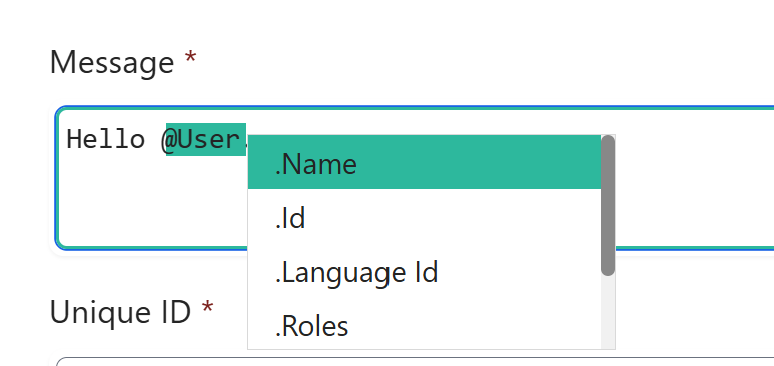 The **IntelliSense** feature in PowerUX enhances the maker experience by providing real-time suggestions and auto-completions when working with dynamic values. It simplifies referencing system variables, control properties, and dynamic attributes, reducing errors and speeding up development.
With IntelliSense, makers can easily access:
* **Presets of system variables** (e.g., user details, app metadata)
* **Dynamic values from attributes** (e.g., page data, selected items)
* **Control properties and values** (e.g., button text, form inputs)
This feature ensures a more efficient and intuitive workflow by automatically surfacing relevant options as makers build their applications.
## Key Features
### 1. **System Variables & Presets**
Triggered using `@` and includes the following parameters:
| Name | Type | Description |
| ------------------------ | ------ | ------------------------------------------------------------ |
| Id | Text | The Id of the user |
| Name | Text | The name of the user |
| Language Id | Number | The LCID of the user language |
| Roles | Array | Array of the assigned security roles for the user |
| Security Role Privileges | Array | Array of security role privileges |
| Transaction Currency | Object | The lookup reference of the transaction currency of the user |
Triggered using `@` and includes the following parameters:
| Name | Type | Description |
| ------- | ---- | ------------------------------- |
| App URL | Text | The current application url |
| Version | Text | The current environment version |
Triggered using `@ `and includes the following parameters:
| Name | Type | Description |
| ------------ | ---- | ------------------------------------------- |
| App Id | Text | The id of the current application |
| Display Name | Text | The display name of the current application |
| Unique Name | Text | The unique name of the current application |
| URL | Text | The url of the current application |
Triggered using `@ `and includes the following parameters:
| Name | Type | Description |
| --------------------- | ------- | ------------------------------------------------- |
| State | Text | The current client state |
| Form Factor | Number | The number of the form factor |
| Is Offline? | Boolean | If the application is in offline state |
| Is Network Available? | Boolean | Returns if the netwerk is available and connected |
Triggered using `@ `and includes the following parameters:
| Name | Type | Description |
| --------- | ------- | ---------------------------------------------------------- |
| Id | Text | The current record Id |
| Is Dirty? | Boolean | IF the current record has some data changed and not saved. |
| Is Valid? | Boolean | Returns if the record is valid |
Triggered using `@ `and includes the following parameters:
| Name | Type | Description |
| --------- | ------ | ----------------------------- |
| Form Type | Number | The type of the current form. |
###
***
### 2. **Dynamic Attributes & Contextual Values**
PowerUX’s IntelliSense detects attributes relevant to the current context.
Use `@Attributes` to display a list of dynamically generated attributes that are fetched from the UX FLow selected table attributes metadata.
***
### 3. **Dynamic Controls Values**
PowerUX’s IntelliSense detects controls relevant to the current context.
Use `@Controls` to display a list of dynamically generated controls that are exported from the UX Flow selected form.
***
###
## How to Use IntelliSense
1. **Invoke IntelliSense:**
1. Start typing in a formula or expression field, and IntelliSense will automatically suggest available options.
2. Use `@` to manually trigger IntelliSense.
The **IntelliSense** feature in PowerUX enhances the maker experience by providing real-time suggestions and auto-completions when working with dynamic values. It simplifies referencing system variables, control properties, and dynamic attributes, reducing errors and speeding up development.
With IntelliSense, makers can easily access:
* **Presets of system variables** (e.g., user details, app metadata)
* **Dynamic values from attributes** (e.g., page data, selected items)
* **Control properties and values** (e.g., button text, form inputs)
This feature ensures a more efficient and intuitive workflow by automatically surfacing relevant options as makers build their applications.
## Key Features
### 1. **System Variables & Presets**
Triggered using `@` and includes the following parameters:
| Name | Type | Description |
| ------------------------ | ------ | ------------------------------------------------------------ |
| Id | Text | The Id of the user |
| Name | Text | The name of the user |
| Language Id | Number | The LCID of the user language |
| Roles | Array | Array of the assigned security roles for the user |
| Security Role Privileges | Array | Array of security role privileges |
| Transaction Currency | Object | The lookup reference of the transaction currency of the user |
Triggered using `@` and includes the following parameters:
| Name | Type | Description |
| ------- | ---- | ------------------------------- |
| App URL | Text | The current application url |
| Version | Text | The current environment version |
Triggered using `@ `and includes the following parameters:
| Name | Type | Description |
| ------------ | ---- | ------------------------------------------- |
| App Id | Text | The id of the current application |
| Display Name | Text | The display name of the current application |
| Unique Name | Text | The unique name of the current application |
| URL | Text | The url of the current application |
Triggered using `@ `and includes the following parameters:
| Name | Type | Description |
| --------------------- | ------- | ------------------------------------------------- |
| State | Text | The current client state |
| Form Factor | Number | The number of the form factor |
| Is Offline? | Boolean | If the application is in offline state |
| Is Network Available? | Boolean | Returns if the netwerk is available and connected |
Triggered using `@ `and includes the following parameters:
| Name | Type | Description |
| --------- | ------- | ---------------------------------------------------------- |
| Id | Text | The current record Id |
| Is Dirty? | Boolean | IF the current record has some data changed and not saved. |
| Is Valid? | Boolean | Returns if the record is valid |
Triggered using `@ `and includes the following parameters:
| Name | Type | Description |
| --------- | ------ | ----------------------------- |
| Form Type | Number | The type of the current form. |
###
***
### 2. **Dynamic Attributes & Contextual Values**
PowerUX’s IntelliSense detects attributes relevant to the current context.
Use `@Attributes` to display a list of dynamically generated attributes that are fetched from the UX FLow selected table attributes metadata.
***
### 3. **Dynamic Controls Values**
PowerUX’s IntelliSense detects controls relevant to the current context.
Use `@Controls` to display a list of dynamically generated controls that are exported from the UX Flow selected form.
***
###
## How to Use IntelliSense
1. **Invoke IntelliSense:**
1. Start typing in a formula or expression field, and IntelliSense will automatically suggest available options.
2. Use `@` to manually trigger IntelliSense.
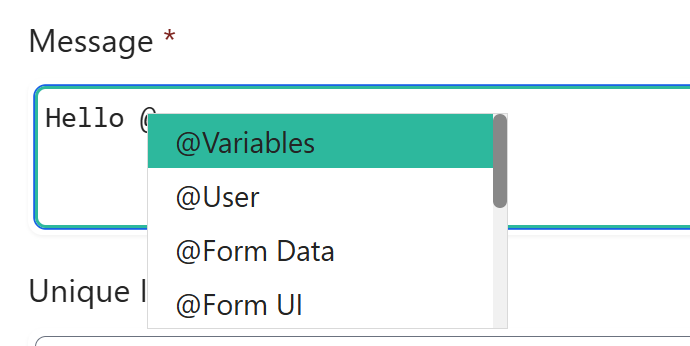 2. **Select a Suggested Value:**
* Use arrow keys to navigate suggestions.
* Press `Enter` to select an option.
3. **Filter and Search:**
* Type part of a name to filter results dynamically.
* IntelliSense highlights relevant matches.
Unknown sub items of a certain IntelliSense object, like a variable object, a retrieved record, or an item in a for loop, you can directly type the logical name of the parameter or the attribute from the logic. For example:
`@Variables.RetrievedContact.firstname`
`@Item.new_name`
2. **Select a Suggested Value:**
* Use arrow keys to navigate suggestions.
* Press `Enter` to select an option.
3. **Filter and Search:**
* Type part of a name to filter results dynamically.
* IntelliSense highlights relevant matches.
Unknown sub items of a certain IntelliSense object, like a variable object, a retrieved record, or an item in a for loop, you can directly type the logical name of the parameter or the attribute from the logic. For example:
`@Variables.RetrievedContact.firstname`
`@Item.new_name`